Azure Site Recovery
Azure Site Recovery is part of a Business Continuity and Disaster Recovery Service. It is like having a backup server. The idea behind Azure Site Recovery is to replicate the on-premise server on the cloud. This is an ongoing process- if you ever face an IT Outage, this can come into play and save the day.
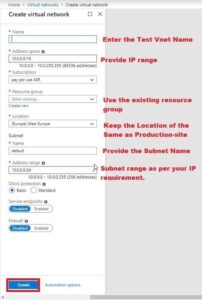
Create a different VNET under the Azure environment for performing the Failover Test.
- Go to Virtual Network on the left side of the dashboard

2. Click on ADD
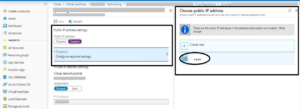
- Get the Public IP address to verify the VM’s by login into it. To get the Public IP Got to ALL Resources > Select Add Public IP address
Why perform a failover test?
A test that is run to validate a systems ability to bring operations back to normal during an IT Outage or a server failure and accommodate extra resources.
When the on-premise server gets down you fail over to Azure, post which, Azure VMs are created.
Open the Azure Site Recovery Dashboard

- Click on the Option of “Test Recommended”

- Select the option of Failover Test by clicking on the ellipses “…”.

- Click on Test Failover

- Select the Recovery Point and Virtual Network which you created for performing the Test.
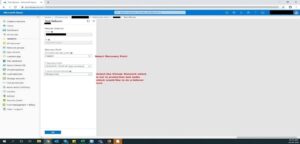
- It performs the Test automatically in the background. On Dashboard > Virtual Machines > You will observe, it will be creating the VM.
- You can assign the Public IP on the automatically created VM and then Connect the RDP /SSH from your end.
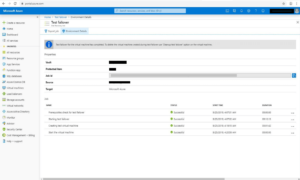
- Under Failover logs, you will observe the status of each ongoing activity.
- Once you see that all the activities are completed and observe the green checkmark status. Then go ahead and run the “Cleanup Test Failover”.
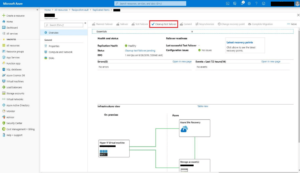
- Now to clean up the things which were created during the Test Failover while Testing-
- Delete the Public IP and Virtual Network which were created earlier. To delete them – All Resource> Select Public IP and virtual network and click on Delete.
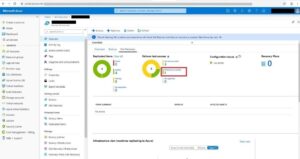
- Once the test is completed for the VM, after a few mins you will see that VM under Performed successfully.
Upcoming:
We keep uploading new blogs every week on our website- keep an eye out for those.
Lastly, if you need help with more such IT Solutions, feel free to reach out to us. We’ll be happy to resolve your queries.