If your only backup monitoring metric is “the RMM shows it online,” chances are you could land in deep trouble.
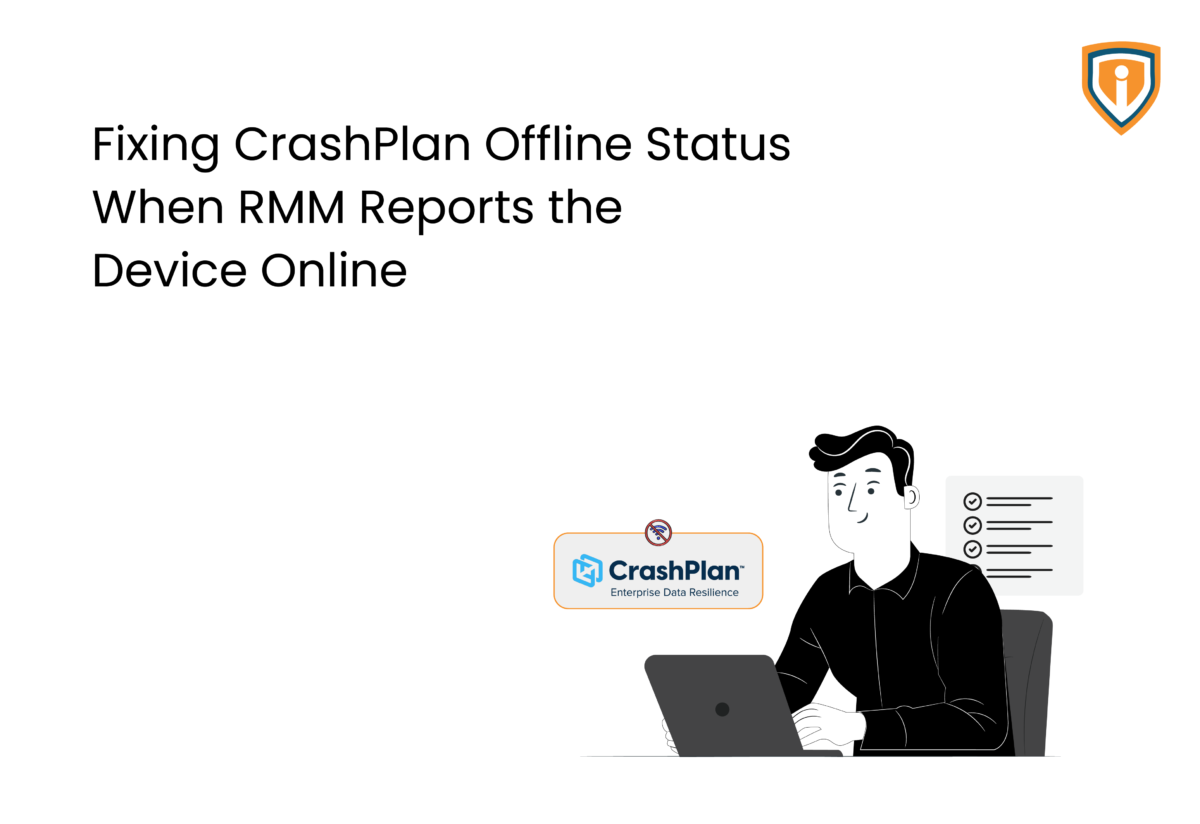
Here is a specific case we’re talking about: Your RMM portal shows a device as online. CrashPlan backup console shows the same device as offline.
So which one do you trust?
The mismatch usually means the CrashPlan agent installed on the device is not reporting back correctly (might’ve lost connection/identity), even though the device is online and reachable. That’s why mature NOC service providers include periodic backup checks as a standard practice instead of assuming the RMM status as proxy for backup health.
What Causes This Mismatch?
RMM and CrashPlan each rely on their own small background agent installed on the device to send status updates to their respective dashboards.
If the RMM agent is healthy, RMM shows the device online. But if the CrashPlan agent has an installation problem like corrupted files, a broken registration, or a service that isn’t running properly, then CrashPlan’s console won’t hear from it and will show the device as offline, even though nothing is actually wrong with the device or its network connection.
How to Fix a CrashPlan Agent Reporting Offline
The fix involves three parts: resetting the CrashPlan agent’s identity on the device, signing back in to reconnect the backup, and deactivating the duplicate device entry the reset leaves behind.
Steps to resolve this issue.
Step 1: Sign out of the CrashPlan app
- Sign into the CrashPlan desktop application
- Double-click the CrashPlan icon in the top left of the app (above your device name) to open the CrashPlan Command Line Interface (CLI)
- Alternatively: Press Shift + Control + C (Option + Command + C on Mac)
- Type the following command:
guid new
- Press Enter to run it.
Note: This command may cause the CrashPlan app to close on its own – simply reopen it afterward.
Step 2: Sign In and Reconnect the Backup
- Reopen the CrashPlan app and use your registered email address to sign in
- Choose Replace Existing
- Choose the Device name from the device
- Click Continue
- Select Skip File Transfer (as this is a re-install and not a brand-new computer you need to download files onto).
- Proceed through Transfer Settings and sign into the application again when prompted. Backup will resume afterwards.
Note: The app will close and reopen to apply settings, and you will have to login a final time.
Step 3: Deactivate the extra device
- Sign in to the CrashPlan console using your email address.
- Go to Devices: Click on the “Devices” tab in the console.
- Under your email address/user, click on the device name itself (not the checkbox — click the actual name).
- Open the Action Menu (⚙) in the upper-right
- Click Deactivate to remove the outdated, duplicate device entry.
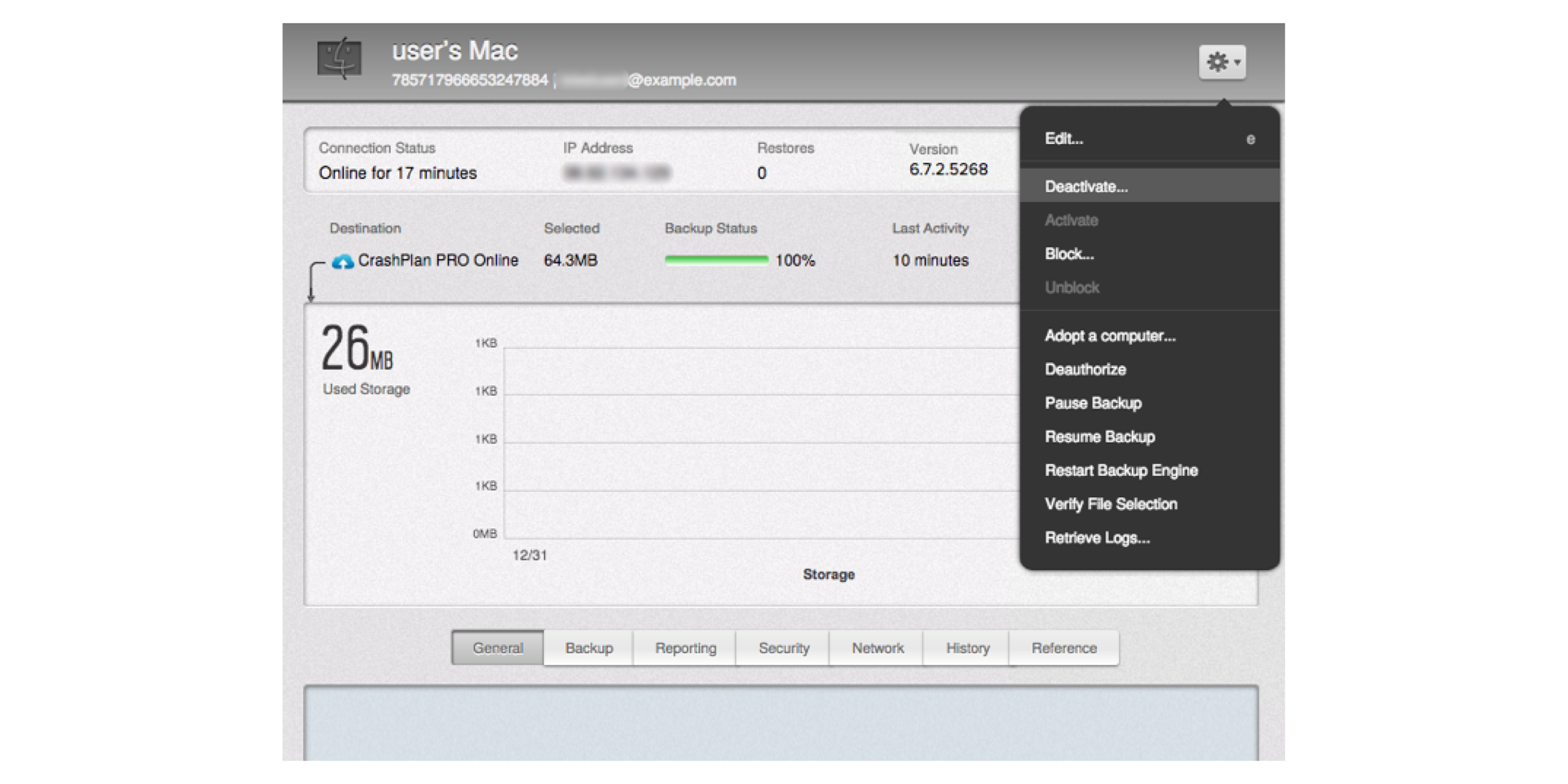
- Confirm deactivation: Check the confirmation box when prompted, then click OK.
Experience Mature Managed NOC Services
24/7 white-label NOC support. Fewer surprises from patch failures to backup mismatches. Let our team monitor, triage, and resolve issues in the background.
Conclusion:
A device showing offline in CrashPlan while RMM shows it online almost always comes down to the local CrashPlan agent losing its proper registration – not an actual connectivity problem. Resetting the agent’s identity, signing back in, and clearing out the old device entry resolves the mismatch and gets backups running again reliably.
Catching these errors sooner, rather than after a client asks about a missing backup, is really a case for proactive monitoring, its necessary checking both consoles regularly instead of assuming one status confirms the other.