SharePoint lists are widely used for storing structured data, but over time, they can accumulate outdated or unnecessary entries. Manually cleaning up a list or deleting large numbers of items can be time-consuming and inefficient.
Power Automate makes it easy to automate this process. In this guide, we walk you through creating an instant cloud flow that retrieves items from a SharePoint list and deletes them using dynamic content. You’ll also learn how to enable pagination to handle large lists efficiently.
Whether you’re performing a one-time cleanup or building a recurring process, this step-by-step approach will help you keep your SharePoint lists up-to-date and manageable.
Step-by-Step Guide to Bulk Delete Items from SharePoint Lists
Step 1
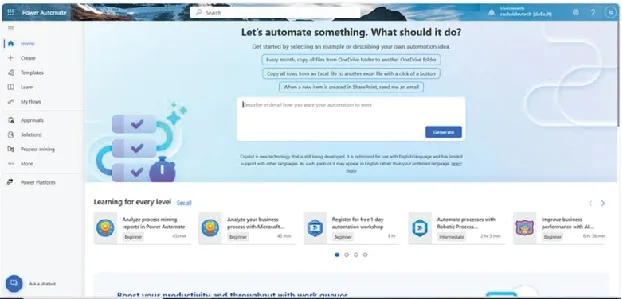
Go to the Power Automate portal
Next, make sure you are logged into the same account as the one you are using on SharePoint.
Step 2
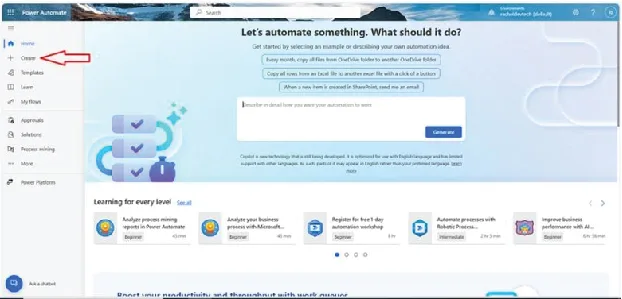
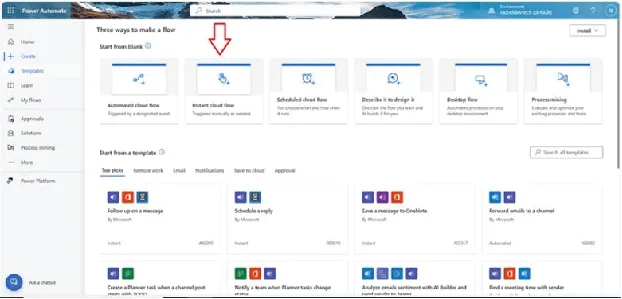
At the left-hand side of your screen, click on Create
Step 3
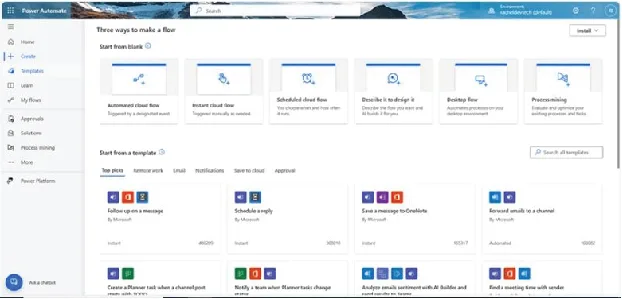
Click on instant cloud flow
Step 4
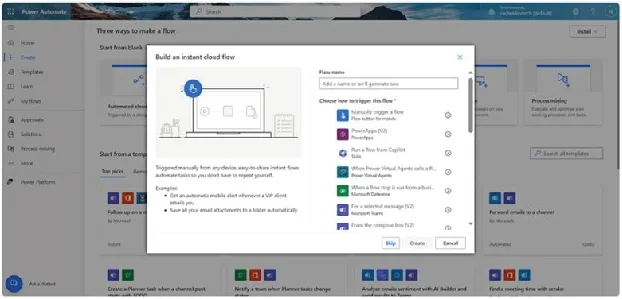
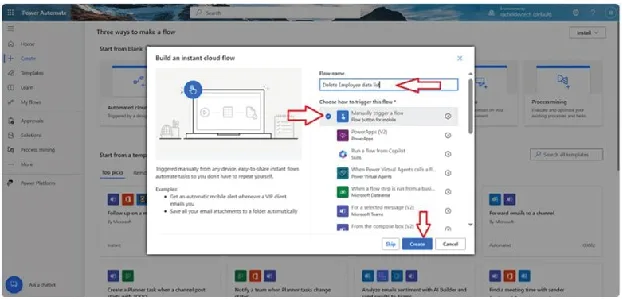
Select Manually trigger a flow
Give the flow a name for easy recognition
Next, click on Create
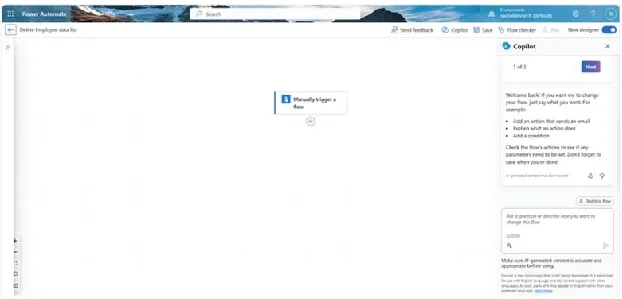
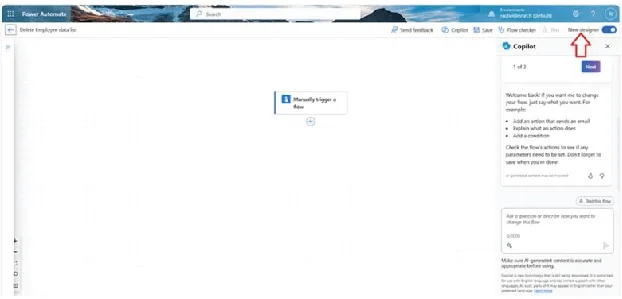
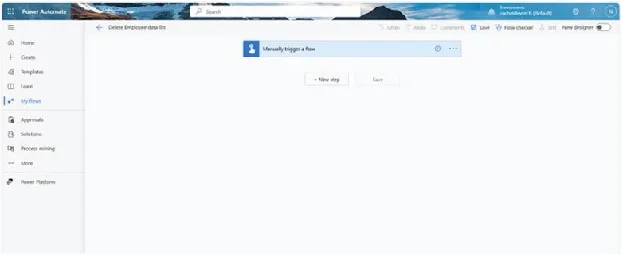
Here, we will be using the classic designer. On the right-hand side, click on the toggle button to switch it off
Step 5
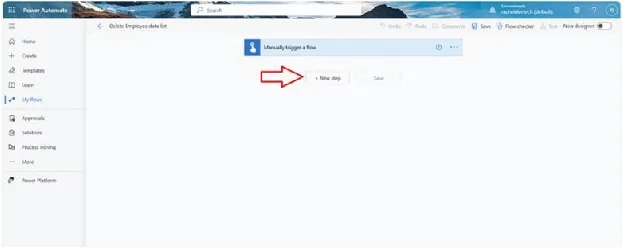
Click on +New step to add your first action
Step 6
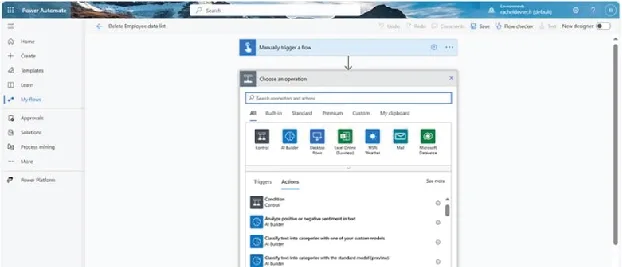
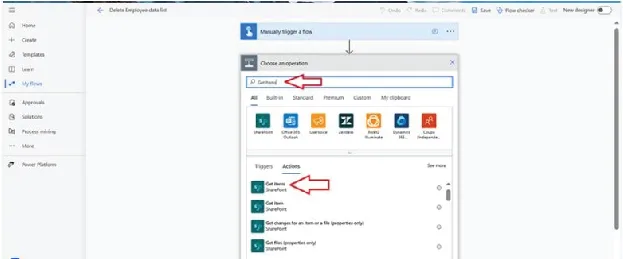
On, Choose an operation, search for the action, Get items
Next, click on Get items (this action is from SharePoint)

Step 7
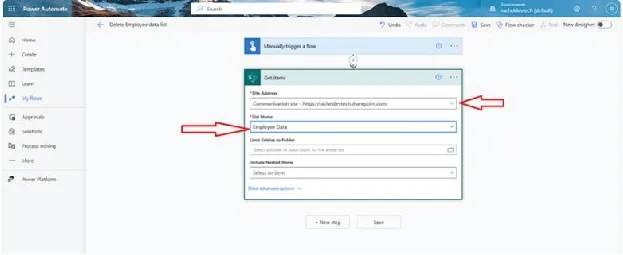
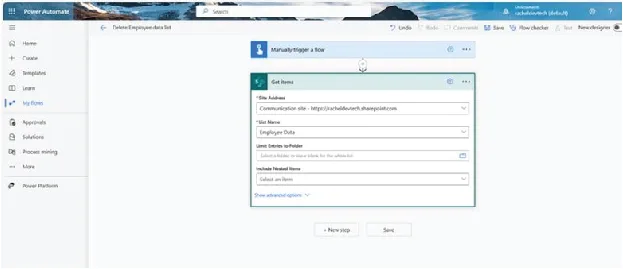
On Get items, select the SharePoint site address by clicking on the drop-down icon and select the SharePoint site your list is created in. Next, select the list name.
Step 8
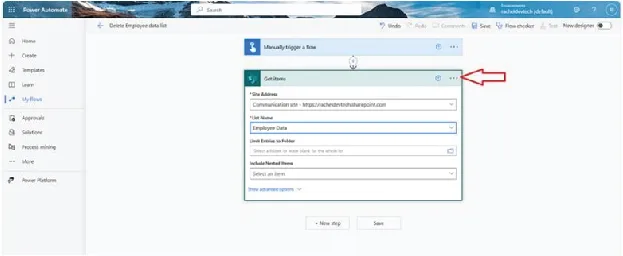
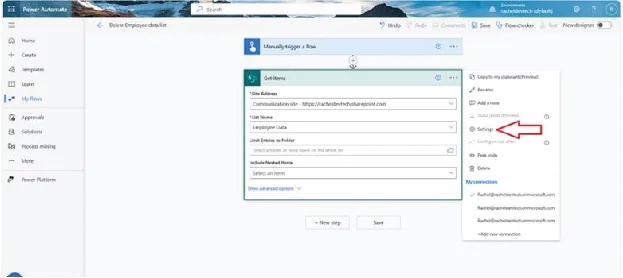
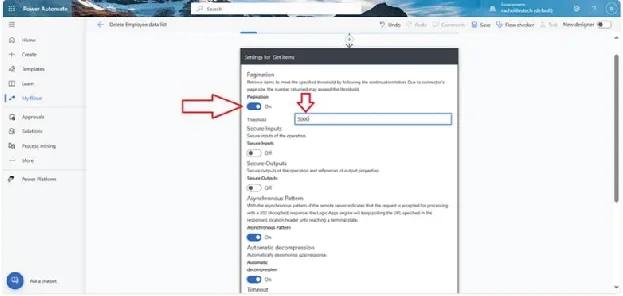
Here we will be increasing the number of items the action can get from SharePoint by turning on Pagination and increasing the threshold.
At the right-hand side of the Get item action, click on the three dots and click on Settings.
Step 9
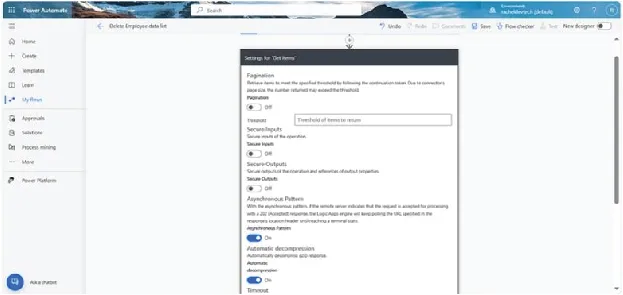
Change the Pagination from Off to On by clicking on the toggle button.
On Threshold, add the value 5000
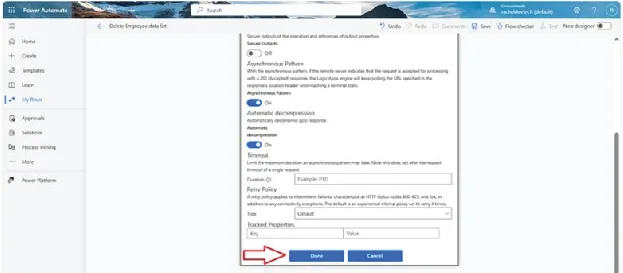
Next, click Done.
Step 10
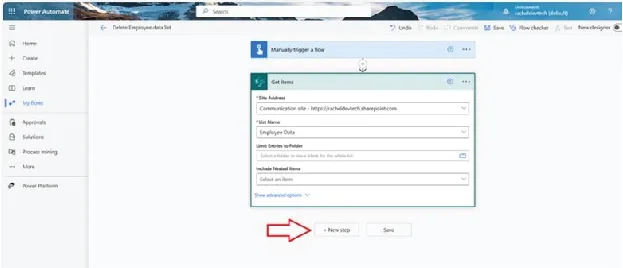
Add a new action.
Click on +New Step
Step 11
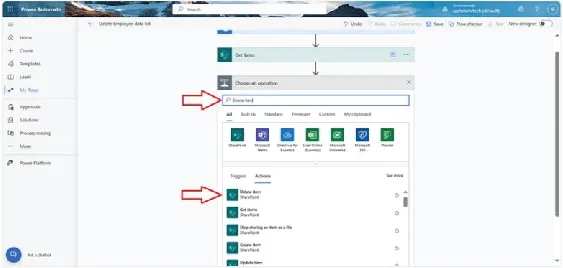
Search for the action Delete item.
Click on Delete Item.
Step 12
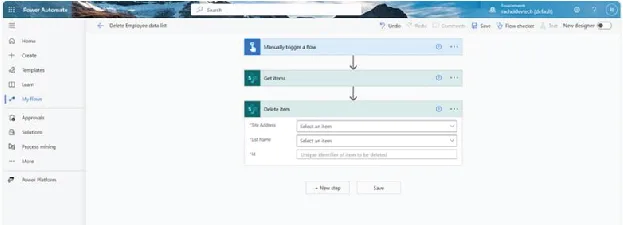
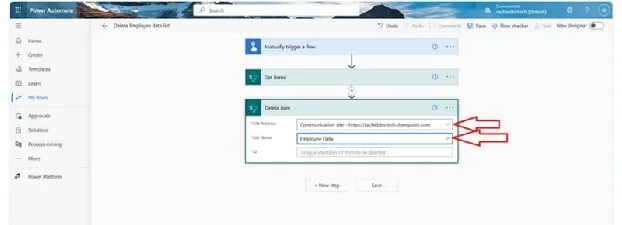
On Get items, select the SharePoint site address by clicking on the drop-down icon
Select the list name.
Step 13
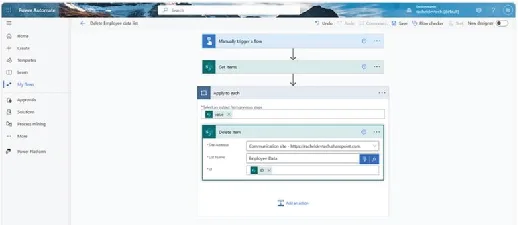
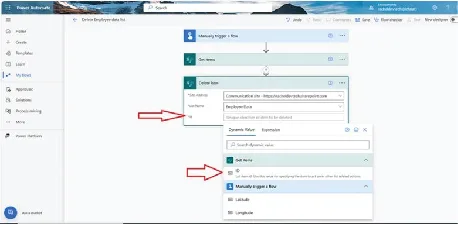
On the Delete Item action, we have a required column which is Id. Here we will add value from the Dynamic content.
By clicking on the thunderbolt icon, on dynamic value click on IS (this must come from the Get item action)
Step 14
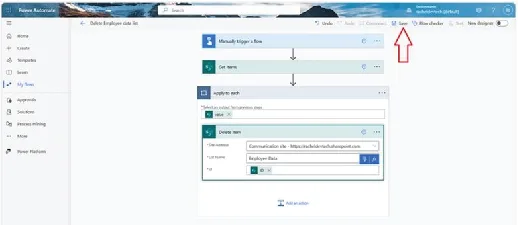
Click on Save
Step 15
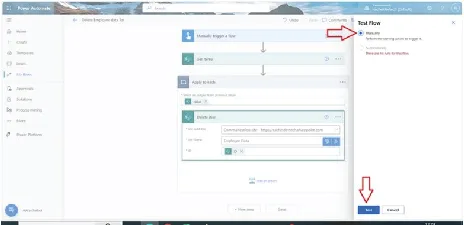
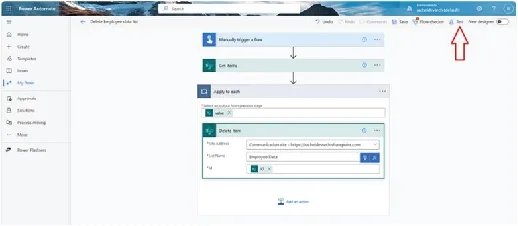
Now, run the flow by clicking on Test. From the options, click on Manual and then click on Test.
Step 16
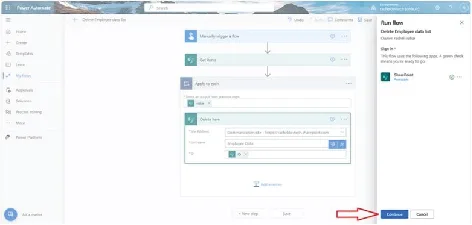
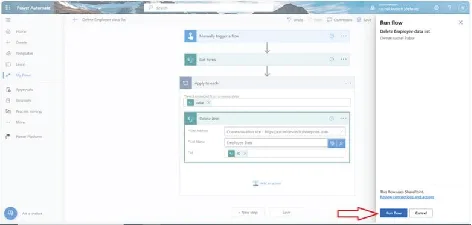
Click on Continue and then click on Run flow
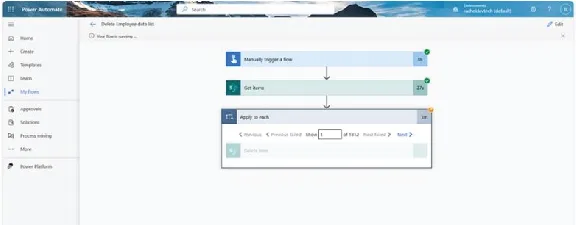
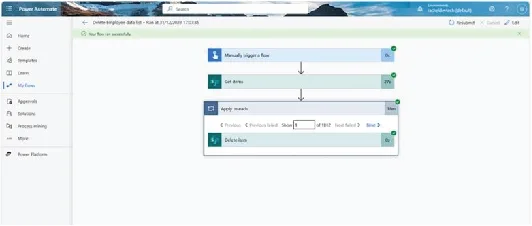
Make sure to check the flow to see how many items were deleted to help confirm the numbers and also if there are any issues. From my flow, 1812 items were deleted from the SharePoint list, which was the number of items in my SharePoint list.
Looking to automate routine SharePoint tasks or streamline Microsoft 365 operations for your clients?
Infrassist supports MSPs with white-labeled Professional Services from Power Automate workflows and SharePoint DMS builds to Microsoft 365 audits and security implementations.
Get expert support, minus the overhead. Let’s connect.