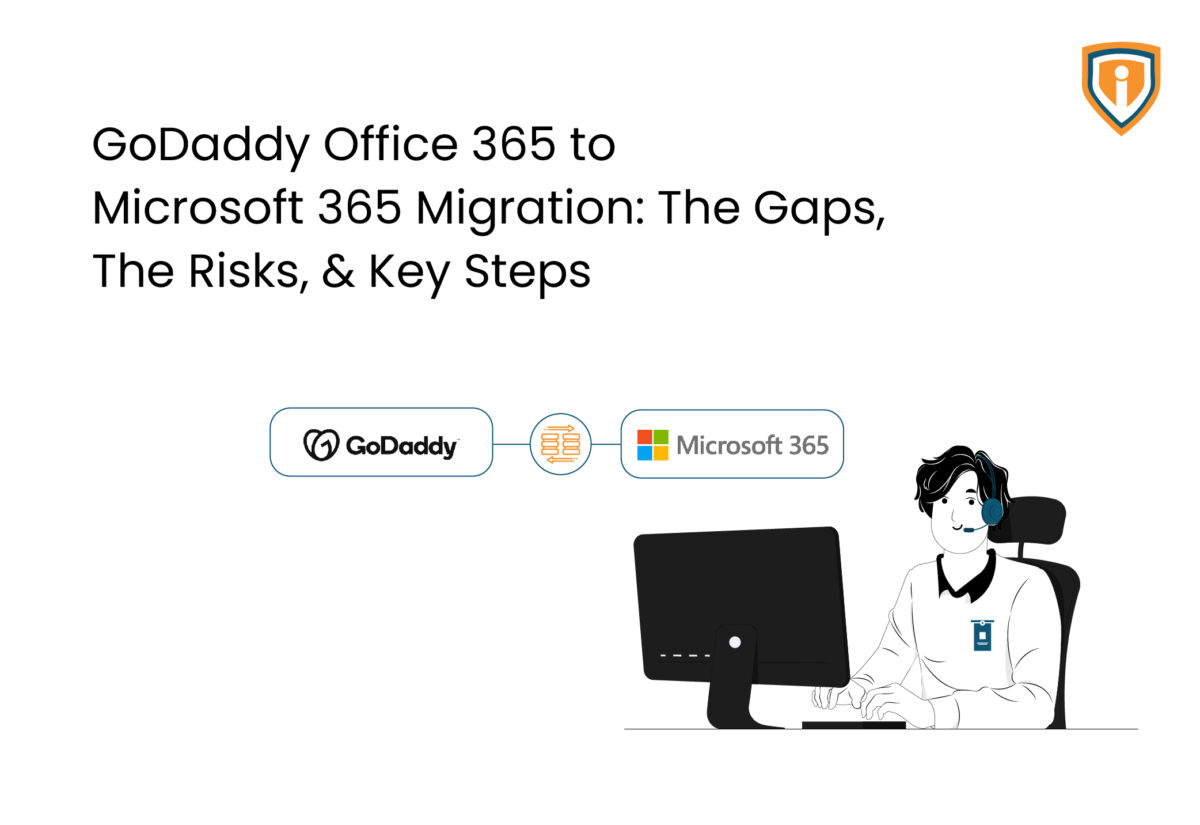
Most businesses that signed up for GoDaddy-hosted Office 365 had a straightforward reason. Domain, email, productivity tools all bundled together, make getting started a cakewalk. The problem shows up later, usually when you try to do something routine, and the environment simply won’t allow you to.
What’s happening beneath is this: GoDaddy is a reseller, and you are not a direct Microsoft tenant. That one distinction has consequences most businesses don’t discover until they’re already blocked by them.
Trying to set up Conditional Access? Restricted. Want to deploy Microsoft 365 Copilot? Unavailable through GoDaddy’s hosted version.
Got a support issue with Microsoft? It goes through GoDaddy first, which adds a layer nobody asked for.
If you’ve hit that ceiling or can see it coming, this is where to start.
What GoDaddy’s Office 365 Really Is
The short version: GoDaddy manages your Microsoft tenant on your behalf. One fact, long list of consequences.
You don’t hold full administrative control. Not every Microsoft 365 plan is available through GoDaddy’s model. Security configurations that matter at scale such as Azure Active Directory, Microsoft Intune, and Defender for Business, are either restricted or off the table completely. For businesses that have outgrown basic email and file sharing, this gap becomes harder to overlook. The tools needed to build a proper modern workplace environment simply are not available through GoDaddy’s hosted model.
GoDaddy Office 365 vs. Direct Microsoft 365 – Head-to-Head Comparison
| Features | GoDaddy Office 365 | Direct Microsoft 365 |
|---|---|---|
| Tenant Ownership | GoDaddy-managed | Fully yours |
| Admin Center Access | Restricted | Complete |
| Licensing Catalog | Subset of plans | Full Microsoft catalog |
| Security and Compliance Tools | Basic | Advanced (Defender, Purview) |
| Copilot Readiness | Not supported | Fully supported |
| Support Channel | Via GoDaddy | Direct with Microsoft |
The table tells you what changes on paper. What it won’t show you is how much day-to-day friction disappears once you’re operating as a direct tenant. Talk to any IT team that’s managed both setups. The difference registers quickly.

Do You Need to Defederate GoDaddy Before Migration?
Yes. And this step trips up more organizations than any other part of the process.
GoDaddy uses a federated identity model. Your domain is tied to their infrastructure. That tie has to be cut before you can migrate GoDaddy Office 365 to Microsoft. Skipping defederation, or getting the sequence wrong, will only lead to authentication failures and broken mail flow on the other side of migration.
Three things defederation involves:
- Removing GoDaddy’s federation settings from your domain
- Updating MX, CNAME, and TXT DNS records toward Microsoft’s servers
- Making sure user accounts are properly synced or recreated in the new tenant
DNS propagation is not instant. Your domain is in a transitional state the moment defederation begins. That window runs anywhere from a few hours on the short end to 48 hours on the long end.
Any misconfiguration creates email downtime. This is not a step to run on a Monday morning with no warning to the business.
How to Back Up Data Before Migrating from GoDaddy Office 365
Back up before anything moves. This is not negotiable.
Data loss mid-migration has no clean fix. None. The backup scope needs to include:
- All mailboxes — email, calendar, contacts
- Shared mailboxes, distribution lists, resource calendars
- OneDrive for Business files
- SharePoint sites and document libraries
- Microsoft Teams data where it applies
Veeam, Dropsuite, native Microsoft backup tools — all workable options. The tool matters less than what happens after you run it. Validate that the backup is completed successfully before the migration window opens. “I think it worked” is not a backup posture. Also pin down a recovery point objective before day one. If something breaks at hour three of migration, you need a clear answer on what you’re rolling back to.
Step-by-Step: How to Migrate GoDaddy Office 365 to Microsoft 365
Step 1: Audit What You Have
Migrations that started without a proper inventory are most likely to come across unpleasant surprises. Get this documented before anything else moves:
- Total mailboxes and their data sizes
- Shared mailboxes, distribution lists, resource calendars
- Active licenses and which users hold which plan
- Third-party integrations authenticating through your GoDaddy environment
- OneDrive and SharePoint data volumes
The integrations piece is where most teams leave money on the table. CRM platforms, e-signature tools, line-of-business apps — if it authenticates through Microsoft 365, it needs remapping post-migration. Miss one, and you’ve got a broken workflow on day one that nobody planned for.
Step 2: Set Up the New Microsoft 365 Tenant
A few things here worth getting right upfront rather than fixing later:
- Plan selection matters. The decision to migrate to Microsoft 365 directly means plan selection is entirely in your hands. Business Basic, Standard, Premium, and enterprise SKUs are not interchangeable, and security requirements should drive this decision, not price alone.
- Configure global admin accounts and set up emergency access accounts. Not glamorous, but necessary
- Multi-Factor Authentication goes on from day one. Enabling it after migration is managing a risk that didn’t need to exist
- Connect Azure Active Directory if hybrid identity is part of your environment
Step 3: Validate the Backup
Covered above. Worth its own line in the process. Don’t proceed without confirmation.
Step 4: Defederate from GoDaddy
Work through GoDaddy’s admin panel to initiate domain release. Federation-related DNS records come down. Then verify domain ownership inside your new Microsoft 365 admin center. Get the sequence wrong and you’re untangling a mess instead of migrating.
Step 5: Migrate Mailboxes
For most organizations doing a GoDaddy Office 365 migration to Microsoft, mailbox migration is where the bulk of the effort lives. It shares the same core requirements as an Office 365 tenant-to-tenant migration: a verified destination tenant, clean DNS, and a sequenced cutover plan. So, the right method essentially depends on what one is working with:
- IMAP migration: Email only, no calendar data or contacts. Works where that tradeoff is acceptable
- Cutover migration: Every mailbox in one window. Practical under 150 seats
- Staged migration: Batches over time. Better for larger organizations where a single cutover window isn’t realistic
- Hybrid migration: For environments running on-premise Exchange alongside Microsoft 365
Microsoft Migration Manager handles the majority of scenarios. BitTitan MigrationWiz is a solid 3rd party option with more granular controls. Seat count, data volume, and downtime tolerance together drive the right choice.
Step 6: Reconfigure Applications and Integrations
Mailboxes are live. Now reconnect everything else that was mapped in Step 1:
- Outlook desktop clients pointing at the new tenant
- Mobile devices with updated Exchange ActiveSync or modern authentication settings
- Every third-party integration that was identified in the audit
Budget more time here than feels necessary. This step almost always takes longer than the estimate.
Step 7: Validate, Then Decommission
Don’t touch anything until this checklist clears:
- All users authenticated successfully with new credentials
- Inbound and outbound email flow confirmed
- Calendar sync and shared mailbox access working
- OneDrive and SharePoint data integrity verified
- Audit logs reviewed and clean
Once everything holds up, cancel the GoDaddy Office 365 subscription. Running both setups in parallel beyond what’s needed means paying for two environments at once. There’s no upside to it.
Common Pitfalls in Microsoft 365 Migration
Same mistakes appear across organizations. Worth knowing before you’re in the middle of one:
- Defederation skipped or sequenced badly: Results in authentication errors post-migration that take time and effort to untangle
- Backup assumed rather than verified: If you can’t confirm it worked, it doesn’t count
- DNS propagation ignored in planning: 48-hour worst case needs to be in the project plan, not discovered mid-process
- End users not prepared: People who don’t know what to expect flood IT with tickets at the worst possible moment
- No rollback plan defined: What does a failed migration look like? What’s the path back? Answer those questions before migration day, not during it
Can Small Businesses Migrate Easily from GoDaddy Office 365?
Under 50 seats, the technical side is genuinely manageable. Smaller mailbox counts, fewer integrations to reconnect, and a cutover migration that wraps the whole move in one window make it far more straightforward than what larger organizations deal with.
The real challenge for smaller businesses isn’t technical complexity. It’s that most don’t have dedicated IT resources with migration experience sitting around. Trying to fill that gap during a live migration is a gamble. Bringing in Microsoft 365 migration services from a certified Microsoft partner is a sound call. And here’s why! Downtime, data exposure, and staff disruption from a failed migration will cost far more than professional help ever would.
Should Your Enterprise Hire a Microsoft 365 Migration Expert?
If email keeps the business running — and for most it does — this isn’t something to wing.
Microsoft Office 365 migration professionals make particular sense when:
- The environment involves hybrid identity or on-premise Exchange infrastructure
- Mailbox counts are large or SharePoint and OneDrive data volumes are significant
- Compliance requirements such as HIPAA, GDPR, or ISO 27001 apply to how data is handled
- The migration window is tight and the business can’t absorb downtime
- The internal team hasn’t run a migration of this scope before
A certified Microsoft partner brings tested migration playbooks and experience to anticipate where things go wrong before they do. If you want a clearer picture of what that investment looks like, Microsoft 365 migration services costs break it down.
What You Actually Gain After M365 Migration
Once you migrate from GoDaddy Office 365 to Microsoft Office 365 and operate as a direct tenant, the gap in capability becomes obvious fast:
- Full Microsoft 365 admin center access with real control over configuration
- Eligibility to roll out Microsoft 365 Copilot across the organization
- Microsoft Defender for Business and proper threat protection policies
- Conditional Access through Azure Active Directory
- Microsoft Intune for endpoint and device management
- Direct Microsoft support means no intermediary & no added latency

The business benefits of Office 365 migration go well beyond features — for organizations planning workplace modernization or evaluating AI-powered productivity tools, the direct Microsoft 365 tenancy is a prerequisite, not an optional upgrade.
Migrate Emails and Data Smoothly
Let Infrassist handle your Microsoft 365 migration while your team stays focused on business continuity and day-to-day operations.
Final Word
The GoDaddy Office 365 to Microsoft 365 migration is a well-known process. Defederation, DNS, and mailbox migration each carry real consequences when handled carelessly.
Organizations that plan properly and bring in the right Microsoft 365 migration services where needed come out with an environment built for where the business is going. Not just where it’s been.
If the limits of your current GoDaddy setup are already showing, the question isn’t whether to migrate. It’s about how ready you will be when you do.